
EXPORT EML FOLDERS FROM WINDOWS LIVE MAIL AND THUNDERBIRD
EML is a file format that stores email messages and attachments. This file format supports many email clients like Windows Live Mail, Mozilla Thunderbird, eM client, etc. When users move to different email clients where EML file is not supported, they need to export EML folders from Windows Live Mail, Thunderbird, etc. to the targeted email client file format such as in PST format if you are moving to Microsoft Outlook. In this useful post, we offer you a full-proof solution to export EML files to many file formats.
Query 1: “I was using Windows Live Mail and now I want to export WLM files to MS Outlook as I shifted to Microsoft Outlook. I tried to find out manual solution but failed to implement it. Is there any effective solution to migrate Windows Live Mail files to Outlook?”
Query 2: “I have got EML files extracted from Thunderbird and I want to open these files in Outlook email client. Is there any easy solution available to export Thunderbird EML files into MS Outlook?”
How to export EML folders?
There are various solution available to export data saved in Windows Live Mail and Thunderbird EML files to various formats like PST, MBOX, and MSG. For this, first you need to export EML files from the respective email client -
Follow the steps to export EML file from Windows Live Mail email client –
- Open Windows Live Mail
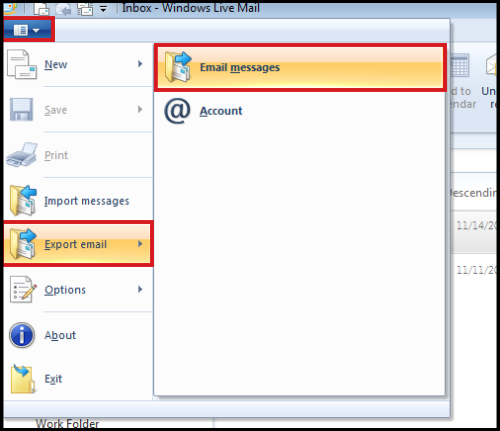
- Click on Menu option choose Export emails and click on. Email messages
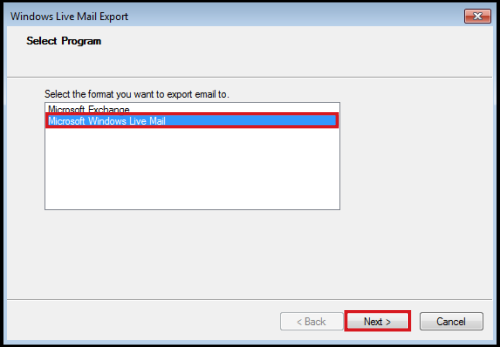
- Choose Microsoft Windows Live Mail Option and click Next
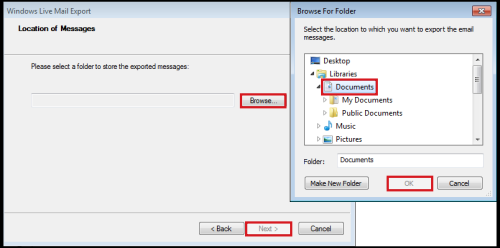
- Click on Browse button and provide the location to save the files. Click OK and then click Next
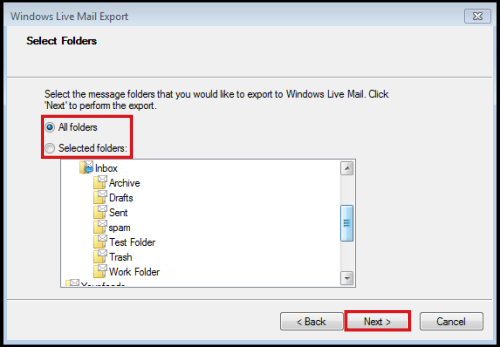
- Select desired folders as per your convenience or all folders that you want to export.
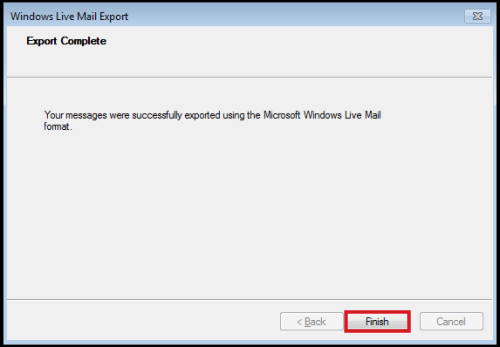
- Click Finish button
First of all, open Mozilla Thunderbird application and then install Import/Export Tools add-on and then export Thunderbird emails to EML file format.
- Open Mozilla Thunderbird, choose Tools from menu bar. Click on Add-on.
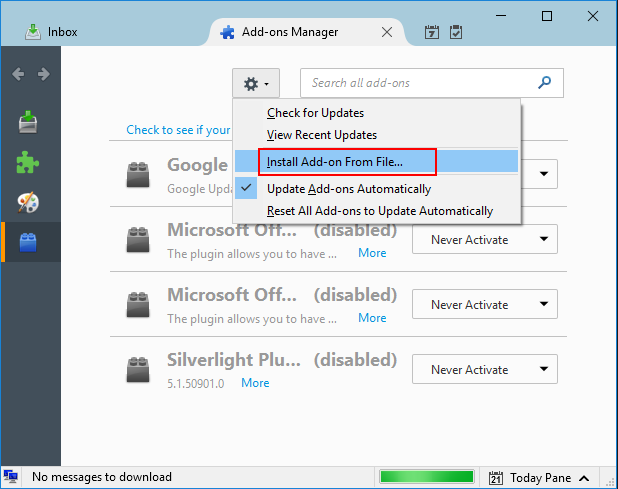
- Select Install Add-on from file
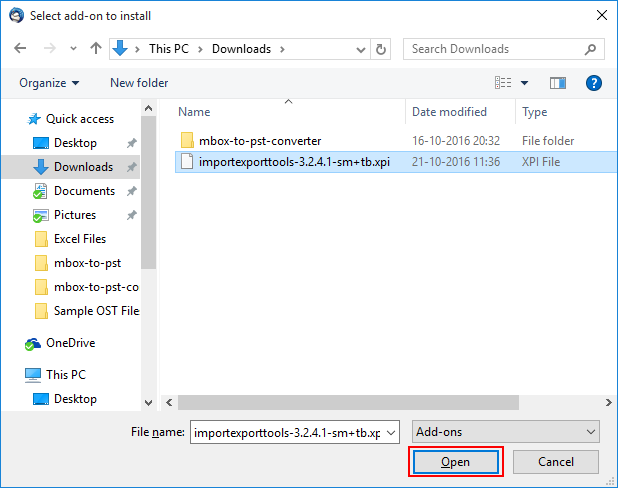
- Install it and click on Open
- Click on Restart Now
After that, click on Import/Export Tools, select Export all messages in folder and choose EML format.
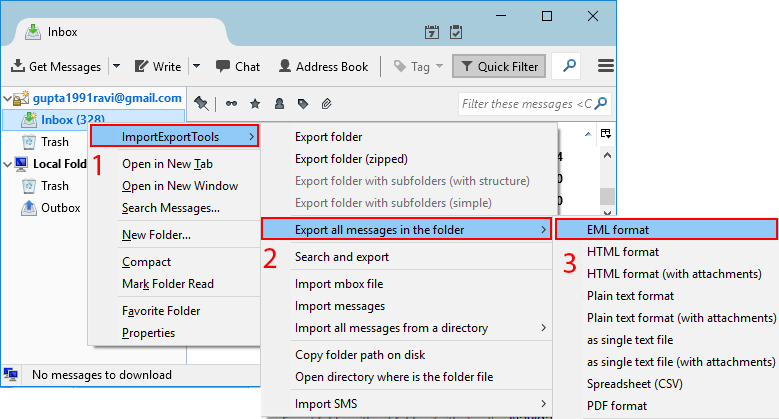
- Choose the location where you want to save EML files
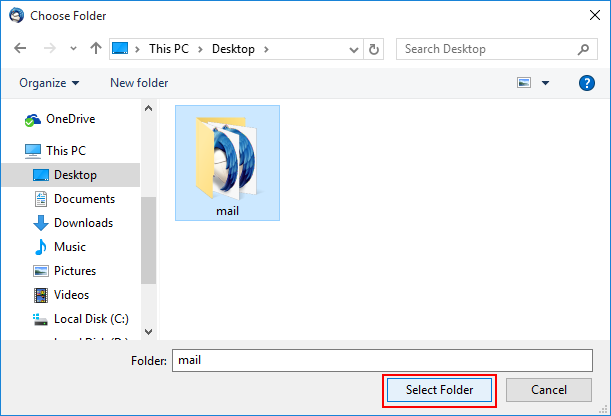
Note: Similarly, you can export EML files from EML supported email clients.
How to export EML file to multiple formats?
Once you get EML files, you can easily export them to desired file format like MSG, PST, and MBOX. Various manual methods could help you to complete the migration but there are various drawbacks which you may face with manual solutions therefore we recommend to go with third-party applications and BetaVare EML Exporter is one such fine applications that provide you instant and safe export of EML files to many file formats. Along with this, the software has many advanced functions such as –
Why choose BetaVare EML Converter?
- Multiple EML files export in a single cycle of export
- Export EML to PST, EML to MBOX, and EML to MSG
- Desired EML files conversion without any data misplacement
- Show added EML files preview prior exporting EML files
- Supportive to all editions of Microsoft Outlook & Windows OS
- Retain email attributes, email formatting and folder hierarchy
- Swiftly export EML file of Windows Live Mail, Thunderbird, eM client, DreamMail, and others.
How to export EML data files using BetaVare software?
Only few simple steps are there to export EML folders with this application. Get a step by step working process to perform the migration –
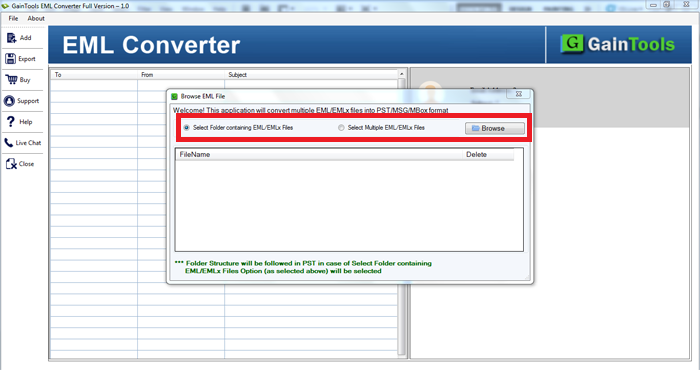
- In the beginning, download and Install the software on your Windows operating system.
- Choose Folder or File mode and add the files using the Browse button on the software panel.
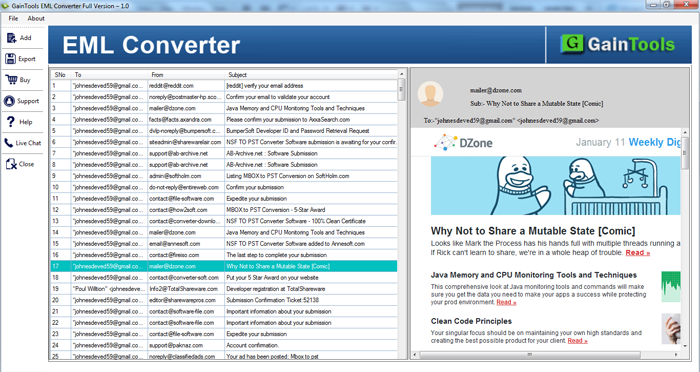
- Find preview of uploaded EML files before finalizing the migration.
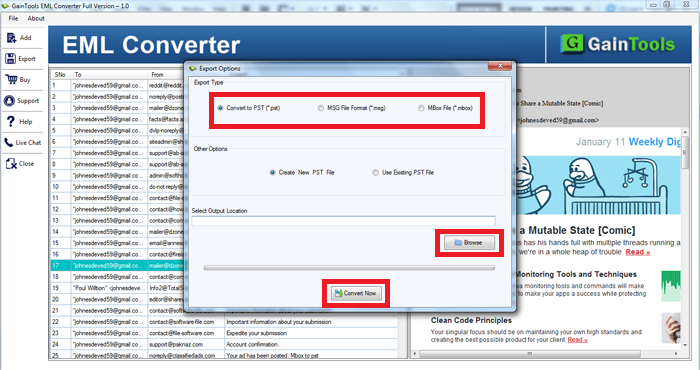
- Choose a desired file format like PST, MSG, or MBOX under Export Type.
- Hit the Browse button and provide a destination path of your system to save the files.
- Hit the Convert Now button and this will commence the migration process.
Wrapping Up
I assure you that using this above-stated software, one can effortlessly perform the migration without getting any errors and problems. To clear all your doubts regarding this application, download the demo edition and examine working capacity of the program before you buy the application. For any kind of questions, ask our support team.