

betavare box

  • Screens

  • Video

How it Works

Exchange Migration Tool

A sophisticated software that migrates Exchange mailboxes/Office 365/Live Exchange to one another. It helps users export data from one email client to another email client.

This tool supports multiple account transfers at one go.
It saves data in multiple formats, including HTML, MSG, EML, and vCard.
It has a user-friendly interface that makes it easy for users to operate it.
This tool provides search items and a deep filter option to help users have for better experience.
It allows users to add any large source mailbox for migration.
Users don’t need to install Outlook to perform the conversion of Exchange mailboxes.
It is a risk-free migration in which the user can effortlessly migrate their Exchange mailbox.
There is no file size restriction for the source mailbox
It has the power to recover corrupted and inaccessible EDB files.
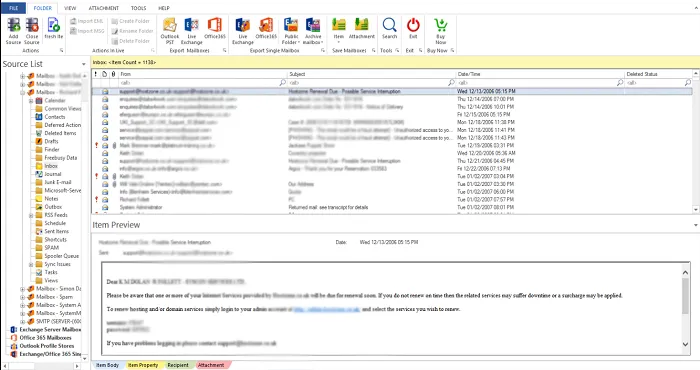
This tool provides a complete preview of data before migration.
For a better experience, users can search for the desired mailbox.
It offers a free demo version to users to test the product.
Its Technical Team is available 24/7.

Installation and Uninstallation Guide

DATA ITEMS TO BE EXPORTED USING OST EXPORTER

Email messages

This BetaVare is a safe and easy tool that simplifies the process of migrating emails without any data or formatting loss. Through this tool, user can export their old Exchange server to a new Exchange server or Office 365 account. This tool migrates all the components like To, Cc, Bcc, Subject, Date-Time, and attachments.

Attachments
This software conveniently migrates all the attachments like images, docs, PDFs, etc, without any modification.
Folders
The user can migrate all email folders together, like the Inbox, Sent Items, Drafts, Outbox, and Deleted Items.
Filters
User can transfer their data according to their requirements by using the filter option, and users can customize the specific data range and transfer it.
Calendar data
This tool seamlessly migrates data from the old Exchange server to the new Exchange server or Office 365 so that all the calendar items can easily migrate, like meetings, appointments, and schedules in detail, without any timing loss.
Calendar attachments
This tool migrates the entire calendar element, like attachments, notes, or links, with accuracy.
Calendar Types

The tool supports all types of calendar data

  • Meetings
  • Events
  • Appointments
  • Reminders
Reminders
It can migrate appointments and meeting reminders without creating any issues, and after the migration, those alerts will work perfectly in your new account as well.
Contacts
Through this application, users can migrate all their contacts of Exchange accounts without any data loss. Whether it's personal contacts or professional ones, all the data will be safely moved to a new Exchange server or Microsoft 365. It transfers all the details like name, email ID, company, job title, etc.
Address

It transfers all contact address details without missing any information

  • Home address
  • Office address
  • Other saved addresses
Phone number
All contact phone numbers, such as mobile, business, and home numbers, are accurately migrated. After the migration, you will find all the details in your new mailbox exactly as they were before.
Tasks

With this application, users can migrate all the tasks of their Exchange account. This tool transfers all the data, like name, description, priority, and progress status, without any data loss. After the migration, all tasks are seamlessly available in your new Exchange or Office 365 account.

  • Due date
  • Start date
  • Reminder
  • Status
  • Subject
File attachments
If a file, document, or attachment is linked to a task, the tool also migrates it without changing the format or data.
Reminder
The tool also migrates all the task reminders smoothly, so that you don't miss any deadlines
Notes
This tool will help you transfer all note details like short reminders, important ideas, or saved info, and it also maintains all the formatting and colors of the notes after the conversion.
Folder

This tool migration all the folders with their formatting, like Inbox, Sent Items, Drafts, Junk, or Custom Folders. It transfers all the data without modification to the new Exchange Server or Microsoft 365.

Support all the MS Outlook Versions

Descriptive features of OST Exporter

batch

Public/Private Migration

This tool is a perfect solution for both public and private Exchange mailbox migration. Whether you want to migrate organization shared mailboxes or personal user mailboxes, it handles everything safely. It is designed with advanced algorithms. It automatically detects permissions and configurations, ensuring a smooth migration. Public folders, archives, and shared resources are also transferred as-is without any errors. You don't have to worry about manual settings or downtime; everything is seamless and secure.

batch

Quick Exchange Migration

This tool provides speed and accuracy and this tool uses a high-performance engine that transfers large data quickly without any delay. It instantly transfers all the mailboxes, attachments, contacts, calendars and folders. The parallel processing feature allows multiple mailboxes to be migrated simultaneously saving both time and effort. Its simple UI and optimized code ensure that the migration process is smooth, regardless of the data size.

batch

Exchange to PST

If you want to back up or archive your Exchange data then BetaVare Exchange Migration Tool is the best choice. It exports your complete mailbox to PST format which can be easily opened in Outlook. Emails, contacts, calendar, notes and attachments are all safely converted into a PST file. This feature is perfect for IT admins and professionals who need data portability and long-term backup. All data properties and hierarchy remain the same; there is no loss of formatting or metadata.

batch

Risk-Free Process

BetaVare Exchange Migration Tool provides 100% risk-free migration. It features a built-in data protection and integrity check system that ensures no data loss, duplication or corruption occurs during the migration. The tool uses secure authentication methods, keeping your credentials and mailboxes completely safe. The process is error-free and uninterrupted, whether the migration is on-premises or in a cloud environment. Every step is transparent and the user has complete control throughout the transfer process.

batch

Exchange to 365

This tool directly migrates your Exchange mailbox to Microsoft 365 (Office 365) without any technical complexity. Whether your Exchange version is older (2010, 2013, 2016, or 2019) the tool supports all versions. All emails, contacts, calendars and attachments are migrated as is. Administrators can easily move data for multiple users simultaneously with zero downtime. Its interface is so simple that even non-technical users can perform the Exchange to Office 365 migration without any assistance.

batch

Exchange to Exchange

BetaVare Exchange Migration Tool is a reliable solution for Exchange Server to Exchange Server migration. It supports both same-domain and cross-domain types of migration. You can easily transfer mailboxes, public folders, calendars and contacts without any manual export/import. The tool automatically handles mailbox mapping and permission handling, making the process fast and accurate. Whether the migration is from Exchange 2010 to 2019 the tool keeps all data intact no downtime, no errors.

batch

Large Mailbox Support

The BetaVare Exchange Migration Tool effortlessly manages data up to GBs or TBs in your mailboxes. This application offers optimal performance for big data sets and enables an infinite mailbox capacity. The transfer is quick and error-free because to its sophisticated caching and gradual migration capabilities. The program transports emails, attachments, and files without any delays. Performance won't be compromised, even with big data.

batch

Advanced Filter

You may transfer precisely the data you want thanks to the tool's included sophisticated filter and search features. You have the option to filter by sender, folder, subject, or date period. Large migrations benefit greatly from this feature as it simplifies the process by excluding unnecessary data. Before the transfer begins, you may easily find particular emails or things using the comprehensive search function. Time and storage are saved by clever and adaptable filters.

batch

Easy Mailbox Transfer

Mailbox movement is quite easy using the BetaVare Exchange Migration Tool. Simply enter your account information, choose your destination, and click "migrate" to begin the process immediately. The application transfers all data in the same format and preserves the full folder hierarchy. Because it offers clear progress bars and step-by-step instructions, even non-technical people may easily utilize it. Complex setup, PowerShell commands, or manual configuration are not required.

batch

User-Friendly Tool

The UI of the application is clear and simple to use. Because each feature is identified properly, beginners as well may complete the conversion without any training. The procedure is made easy with step-by-step setup, real-time progress tracking, and an error reporting system. Because it uses few resources, this lightweight tool operates quickly and steadily. Anybody may move Exchange data with ease and without any misunderstanding, regardless of IT expertise. Efficiency and simplicity go hand in hand.

batch

Free Trial Available

You may test the BetaVare Exchange Migration Tool in advance with its free trial version; this trial edition functions exactly like the full licensed application. The user can try it once for testing. This lets you know exactly how the tool works before you buy it. Migrate with confidence after giving it a try. It provides a full experience of the application; try it once before purchasing it.

batch

Detailed Migration Report

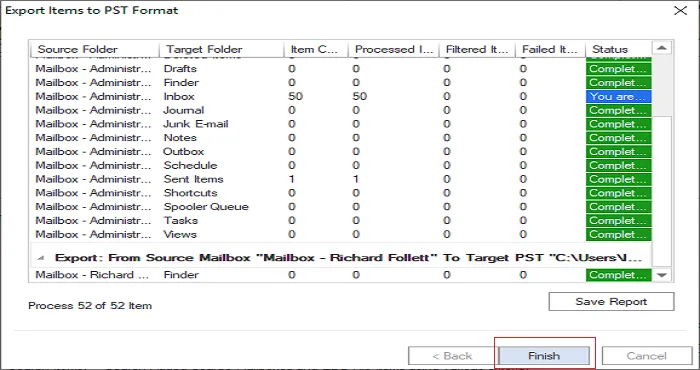
These features generate a complete log report summary of every mailbox, item count, success rate and errors it mentioning everything clearly. This report is helpful for administrators for auditing and verification purposes. It offers the option to export in CSV or HTML format, ensuring the data is secure for future reference. This maintains both transparency and accountability during the migration process.

Reviews by our clients

Frequently Asked Questions

  1. First, the user needs to install and launch the Exchange Migration Software on their OS.
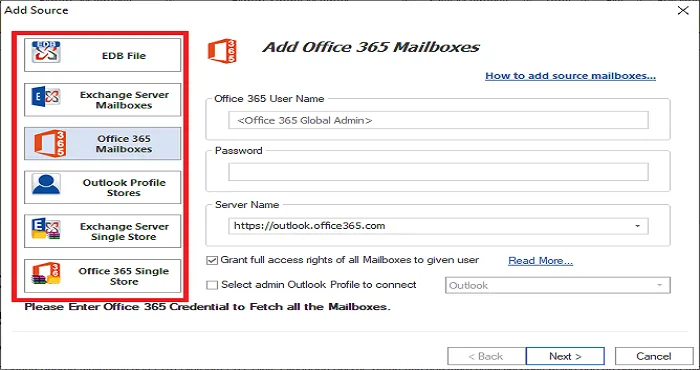
  2. To add Exchange Server mailboxes, provide the domain name, username and password.
  3. Select Export mailboxes into Live Exchange or Office 365. You can also choose Live Exchange or an Outlook PST file.
  4. Now, choose the mailbox items that you want to migrate.
  5. Finally click on the Finish button.

Yes, it migrates all the data without any corruption

Yes, this application maintains all the structure after the conversion

Yes, it maintains all the data in bulk according to the user's requirements

Yes, it provides a free demo version to test the product.

Screenshots